
How to use Compose
Create & browse colorful songs & charts.
Browse songs created with the Prodigies Compose Tool. Play them, print them, and remix them for your classroom. Or compose your own and share it with the world.
Compose is a colorful, kid-friendly way to make Prodigies-style sheet music right in your browser, then share it with classrooms and families everywhere. Anyone can browse and play the library for free. Members on any paid plan — Music, PK-5 or Lifetime — can also print, download, and publish their own songs.
1. Open the Compose Tool
Click Composein the top bar (or "Open the Compose Tool" on the home page). The composer opens with a music staff, a row of colorful bells, and a play button. No setup, nothing to install.
2. Build your song
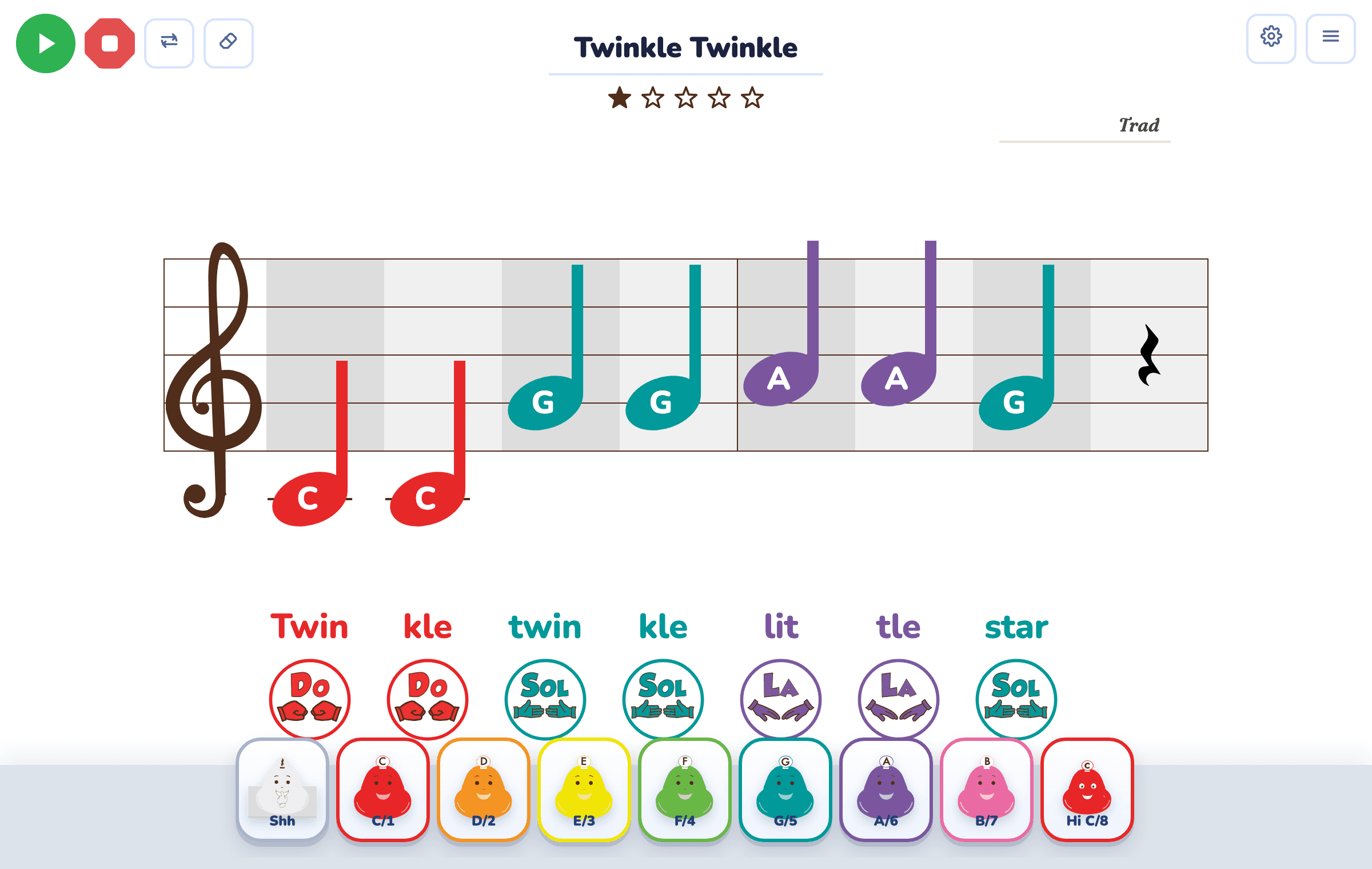
- Place notes. Click a colored bell at the bottom, or drag it onto the staff. Each color is a note (Do Re Mi, C D E), the same colors your kids already know.
- Pick your rhythm. Switch between quarter notes and eighth notes, choose 4/4, 3/4, or 6/8 time, and stretch a note into a half, dotted, or whole note by dragging its right edge. Triplets are supported too.
- Add lyrics. Turn lyrics on and type a syllable under each note.
- Add chords. Turn chords on and tap a beat to pick a chord. Choose a key to see its chords, or type any chord you like (Em7, F#m, Bbsus4…).
- Show hand signs. Turn on Curwen/Kodály hand signs to reinforce solfege.
- Set the details. Adjust tempo (BPM) and the number of measures, and add a title, composer, and arranger.
- Chromatic notes. Switch the scale to Chromatic to reach the sharps and flats, including the low bells below middle C.
3. Play it back
Press Play to hear your song with the real bell sounds; the notes light up as they play. Press Stop anytime.
4. Share & export
Open the menu in the top-right of the composer to:
- Copy Share Link — a link that reopens your exact song (this is also how you publish, see below).
- Print — clean, print-ready sheet music (members).
- Download — save your song as an image or file (members).
5. Publish to the library
Made something worth sharing? In the composer, click Copy Share Link, then head to Publishand paste it in. You'll see a live preview, add a title and optional description, check the two quick boxes (it's your own work, and no student names), and hit Publish to the library. Publishing is a member feature.
6. Browse & find songs
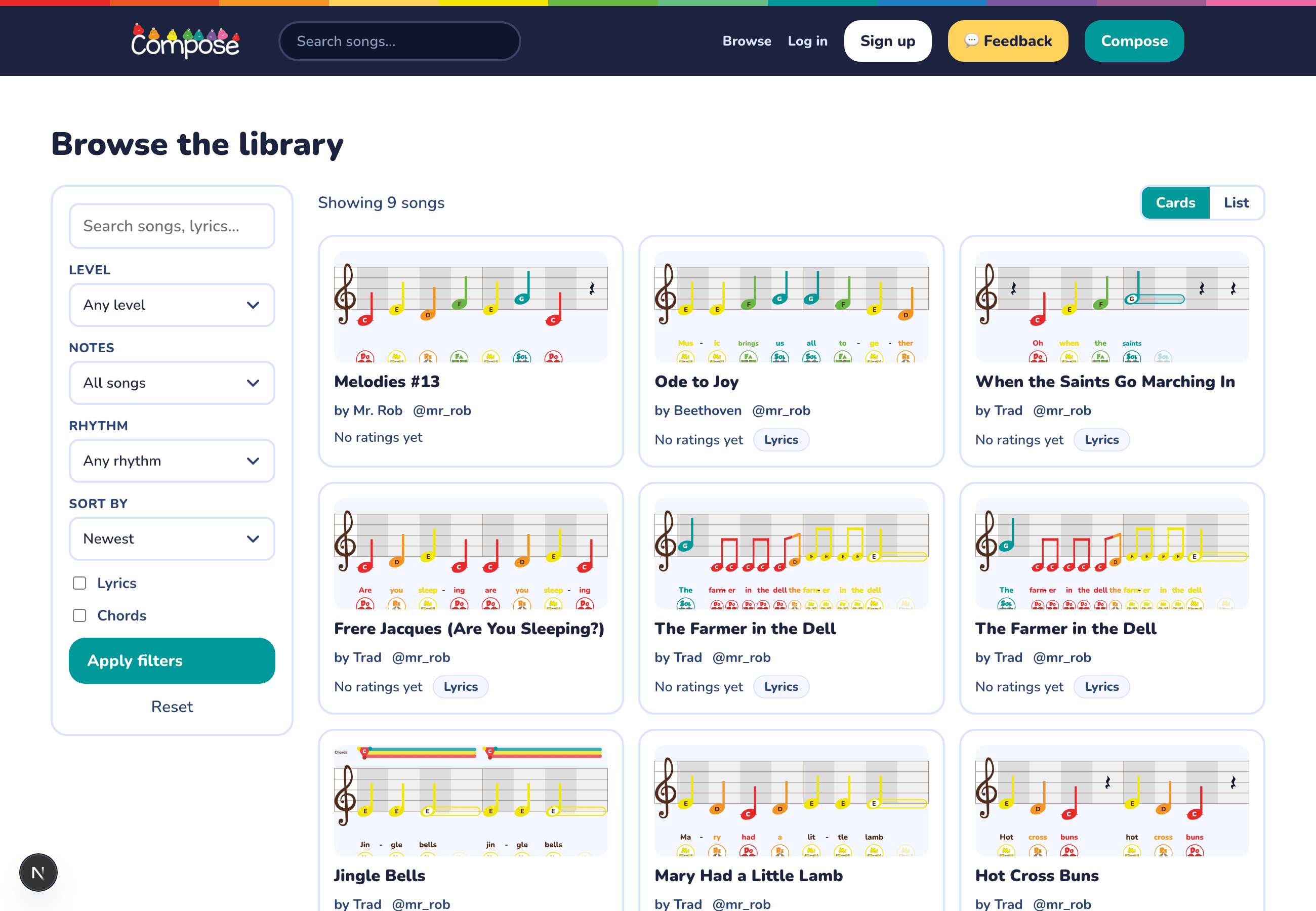
On Browse, search for a song or use the sidebar to filter by Level, Notes (C Major or Chromatic), Rhythm, and whether a song has lyrics or chords. Toggle between the visual Cards view and a compact List view.
7. On a song page
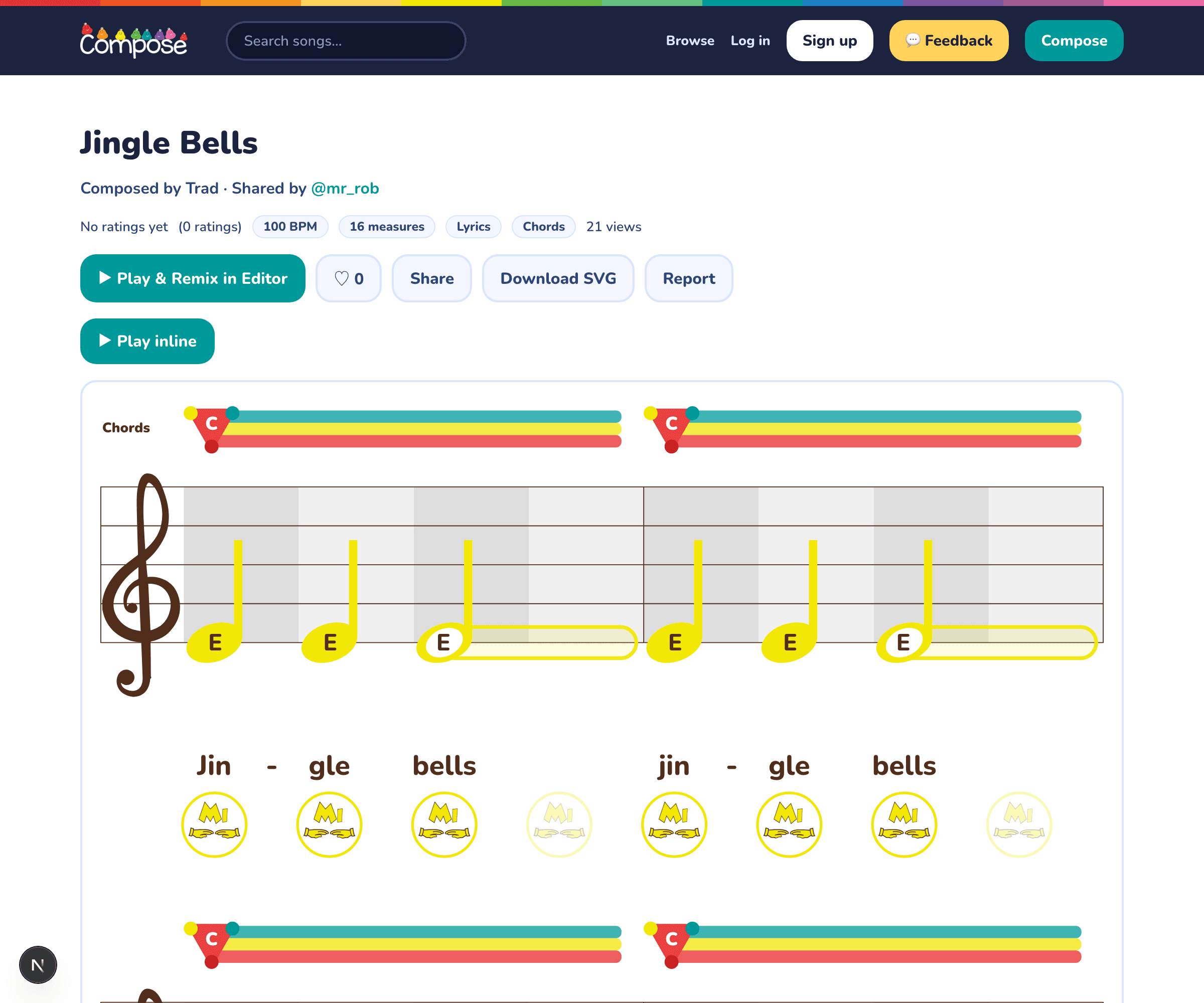
- Play inline — hear the song right on the page.
- Play & Remix in Editor — open the song in the composer to make it your own.
- Favorite and Rate — save songs you love and help great ones rise.
- Download / Print (members) and Reportanything that doesn't belong.
Free vs. Member
Everyone (free): browse the library, play any song, and write your own in 4/4 — with chords, lyrics and note names — then copy a share link to it.
Members (any paid plan — Music, PK-5 or Lifetime): also get 3/4 and 6/8, Perform mode, saving your songs, printing, downloading, and publishing to the library. Access unlocks automatically when you sign in with the same email you used to buy your membership. Not a member yet? See the plans.
Questions or ideas?
We're in beta and building in the open. Share what you love, what's broken, and what would make Compose better on the Feedback board, or email hello@prodigies.com.